


How to digitize your work record book abroad: step-by-step instructions from the Pension Fund


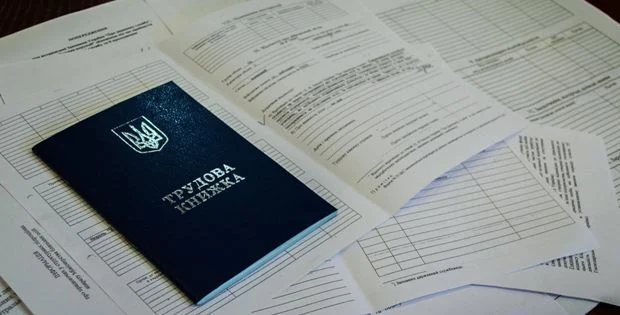
The Main Department of the Pension Fund of Ukraine in Volyn region explained how to submit a scanned copy of the work book for digitization while abroad. The procedure allows you to store all data on employment in electronic form and use them to calculate the insurance period.
This was reported by the press service of the institution.
The electronic work book, introduced in 2021, contains digital data on hiring, transfer, dismissal, and other changes in employment.
Information from a paper work book before January 1, 2004 can be digitized and information about all periods of a person’s employment can be stored in the system of the Pension Fund of Ukraine.
The insurance period is calculated based on the data of the personalized accounting system, and for periods before its implementation – based on data included on the basis of documents in the register of insured persons. This also applies to digitized documents containing data on periods of employment.
You can submit your work book for digitization online, even when you are abroad. To do this, you need to scan all pages of the work book on which entries are made.
Scanned copies must meet the following requirements:
- made in color from original documents;
- contain clear images of full pages and details – name, series and number, date of issue, seals, signatures, surname, first name and patronymic of the owner;
- saved in JPG or PDF formats;
- the size of each file should not exceed 1 MB;
- Recommended scanning quality is 300 dpi.
Step-by-step instructions for online submission of scanned copies:
Step 1: on the Pension Fund of Ukraine web portal , log in using a qualified electronic signature or “Signature Action” and click the “Login” button.

Step 2: in the “Communications with PFU” section, select the “Employment Information” tab.

Step 3: fill in general information about the person and consent to the transfer and processing of personal data.

Step 4: attach scanned copies of all pages of the work book in chronological order and click the “Sign and send to PFU” button.

Step 5: You can view the results of processing the submitted application in the “My Applications” section.

Also follow “Pryamim” on Facebook , Twitter , Telegram , and Instagram .